 Dyno
DynoChange a member's plan
Move a member between plans and memberships, start billing a free member, and what gets charged when you do.
There are two different changes, and they behave differently. Moving a member to another plan on the same membership, for example monthly to yearly, keeps their subscription and adjusts the money. Moving them to a different membership does not: it stops their billing, and you start it again.
Change the plan on the same membership
Use this when the membership has more than one price option, for example monthly and yearly, or a first-child and additional-child rate.
- Open Members and click the member.
- Click Change Plan.
- Under Change plan (same membership), choose the new plan.
- Click Confirm Change.
The member's subscription stays as it is and Stripe swaps the price on it, working out the difference for the rest of the current period. An upgrade normally takes a payment straight away for the balance, and a downgrade credits the unused time. Access is never interrupted.
Two limits:
- The section only appears when the membership has more than one active recurring plan. One-off plans are never offered, because a subscription cannot be moved onto one.
- It needs a live subscription. A comp member has none, so you get an error saying the plan cannot be changed without an active subscription. Use Move onto paid billing instead.
Members can do this themselves. In the app they open My Membership, find Change Billing Cycle and tap Switch to Monthly, or whichever option they want. They are told Stripe will work out the difference for the rest of their cycle before they confirm.
Move a member to a different membership
- Open Members and click the member.
- Click Change Plan.
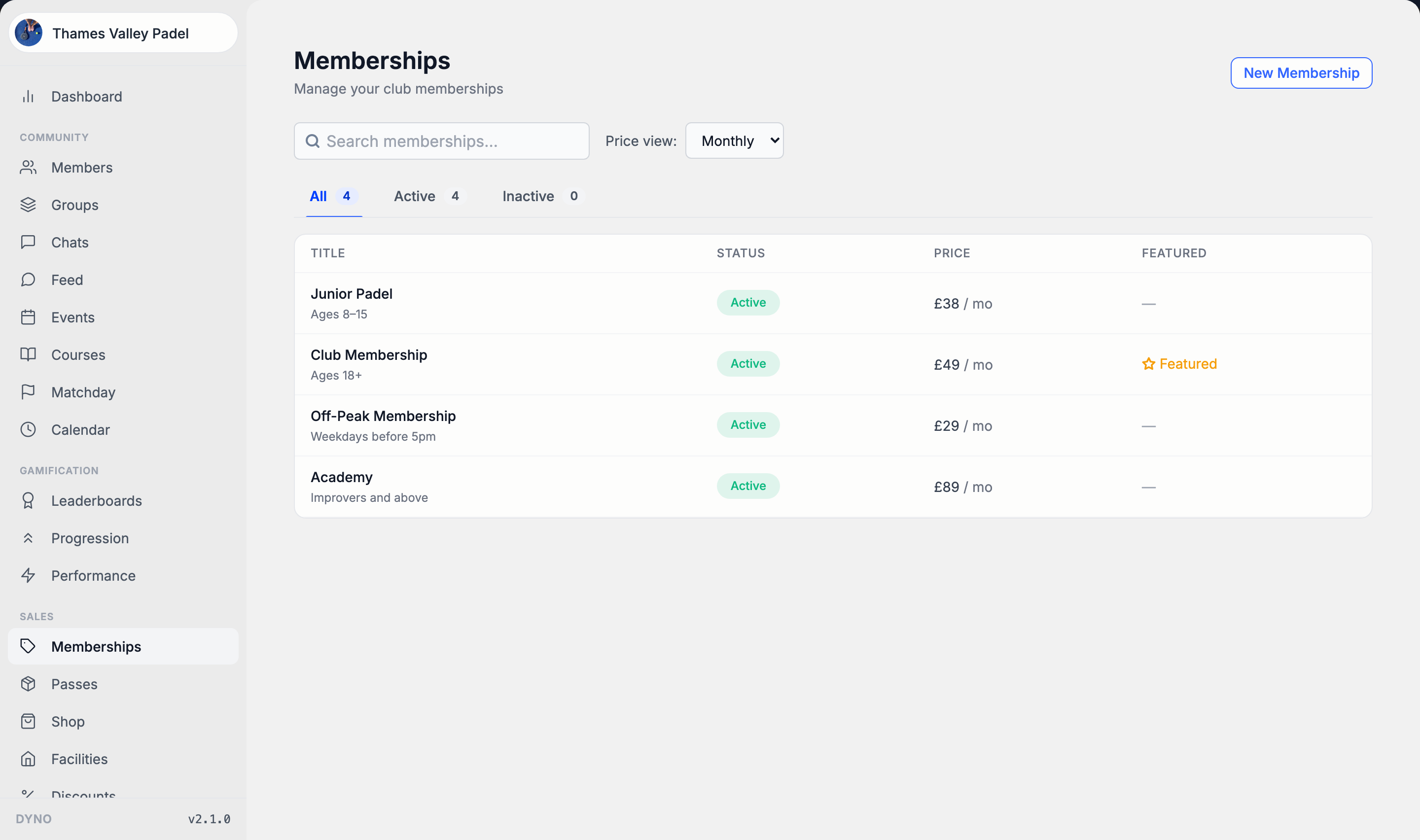
- Under Or switch membership, choose the membership.
- Click Confirm Change.
What happens:
- Their subscription on the old membership is cancelled straight away.
- The part of the current period they had paid for and will not use is refunded to them, on the original payment.
- They are moved onto the new membership and keep access.
To start charging them again, click Move onto paid billing on the same page and choose a plan. See below for what that does.
When the member changes membership in the app
- The member opens your club and taps View other membership options on their membership screen, or opens the membership list.
- They choose the membership they want and confirm.
This route behaves better than the dashboard one. The server keeps their existing subscription and swaps the price on it where it can, so access is never interrupted, the difference is worked out for the rest of the period, and any cancellation they had scheduled is lifted. When the change costs something, a payment sheet opens for it.
They then see "Membership changed", or "Membership being changed" if it has not appeared yet, which is normal for a few seconds.
Free to paid
A comp membership has no subscription behind it, so nothing is ever charged. To start billing it:
- Open Members and click the member.
- Click Move onto paid billing.
- Choose a plan.
- Click Start billing.
Nothing is charged on the day. The first payment is the full amount on the plan's billing day, or today if the plan has no set billing day. They keep the membership they already hold, so there is no gap in access and no second membership.
The modal warns you about two things before you can continue:
- No payment method on file. The first payment will fail until the member adds a card or bank account in the app. Otherwise it tells you which card or Direct Debit the money will come from.
- Awaiting Direct Debit transfer. A member still paying your previous provider will be charged twice if you start billing now. You have to tick a box to say you understand before Start billing is enabled. The safe answer is to leave it alone: they are moved onto billing for you once the transfer lands.
Move onto paid billing only works on the membership the member already holds. To put a comp member onto a different membership and charge them for it, switch the membership first, then move them onto paid billing.
Paid to free
There is no button that turns a paying member into a comp member.
- To keep them on the same membership but stop charging, move them onto a plan priced at 0 on that membership, if the membership has one.
- Switching them to a different membership also leaves them unbilled, as described above.
- Cancelling is not the same thing: it ends the membership and their access. See Cancel a membership.
Assign Membership only appears for a member who holds nothing. It grants a membership free of charge and sets up no billing.
When a change is refused
- "You are already a member here on ..." The member tried to buy a second membership at a club that allows one each. Moving between memberships is a change, not a purchase, and the app sends them down the change route instead. Nothing is charged.
- "You still have this membership. It is set to end ..." They cancelled, then tried to buy the same membership again. There is nothing to buy: they keep it instead. The member taps Keep my membership on their cancellation screen, or you undo the cancellation from their member page, and their billing carries on unchanged with nothing charged that day.
- "A membership change is already in progress." One change is already running for that member, usually a double tap. Wait a moment and check their page rather than trying again.
After any change
- Nothing about a change issues a refund except the switch between memberships described above, which returns the unused part of the period. To give anything else back, see Issue a refund.
- Existing bookings are not touched by a change. Remove them yourself if the new membership should not include them.
- For what the new price will be charged and when, see Billing dates and pro-rata.