 Dyno
DynoCreate your club on Dyno
Create your Dyno account, set up your club in four short steps and find where to change its details later.
Club owners and staff run their club from the Dyno dashboard in a web browser. Members use the Dyno mobile app instead, so if you are joining a club as a member, you do not need to do any of this.
Create your account
- Go to dashboard.dyno-app.com/register.
- Enter your email address and continue.
- On Create your account, fill in First name, Last name, Username, Date of birth and Password. Your password needs at least 8 characters.
- Click Create account.
If that email already has a Dyno account, you are asked for your password instead.
Set up your club
After you sign in, you see Welcome to Dyno. Click Create a new club. If you already belong to a club as a member, Find my club explains how to use the app instead.
Step 1: Name your club
- Enter your Club name. This is the only required field.
- Under What do you do?, pick one or more activities.
- Check the line under the form. Prices default to GBP, and the timezone comes from your browser. Click Change if either is wrong.
- Click Continue.
If a club with a similar name is already on Dyno, you are asked whether you meant to join it. Choose No, this is a new club to carry on.
Step 2: Where you are
Type your address or postcode into Address or postcode and pick the match. You can skip this and add it later.
Step 3: How it looks
Everything here is optional:
- Logo: click Upload logo and choose an image under 20 MB.
- Tagline: one line about your club.
- Description: what you do, who it is for, what a first session is like.
- Website.
Step 4: Your plan
- Choose Monthly or Annual, then pick a plan.
- If you are moving from another system, choose it under Moving from another system?. Your members then come across free until your old provider stops collecting, so nobody pays twice.
- On the Free plan, click Create club. On a paid plan, click Continue to checkout and add a card in Stripe.
Your club is saved before you go to Stripe. If checkout is interrupted, sign in again and click Resume on the welcome screen.
What happens next
You see a screen saying your club is live. Dyno adds a sample class so you can see how bookings work. From here you can Add your first class, Bring your members across, or click I'll look around first to go to your dashboard.
Your dashboard shows a Get started with Dyno checklist. Work through it in this order:
- Create a membership plan.
- If you charge for anything, connect Stripe.
- Turn on your public profile. New clubs start hidden, so members cannot find you and you cannot send invites yet. Open Settings, choose Privacy and switch on Public Club Profile. If you sell paid memberships or passes, connect Stripe first.
- Invite your first members.
Change your club details later
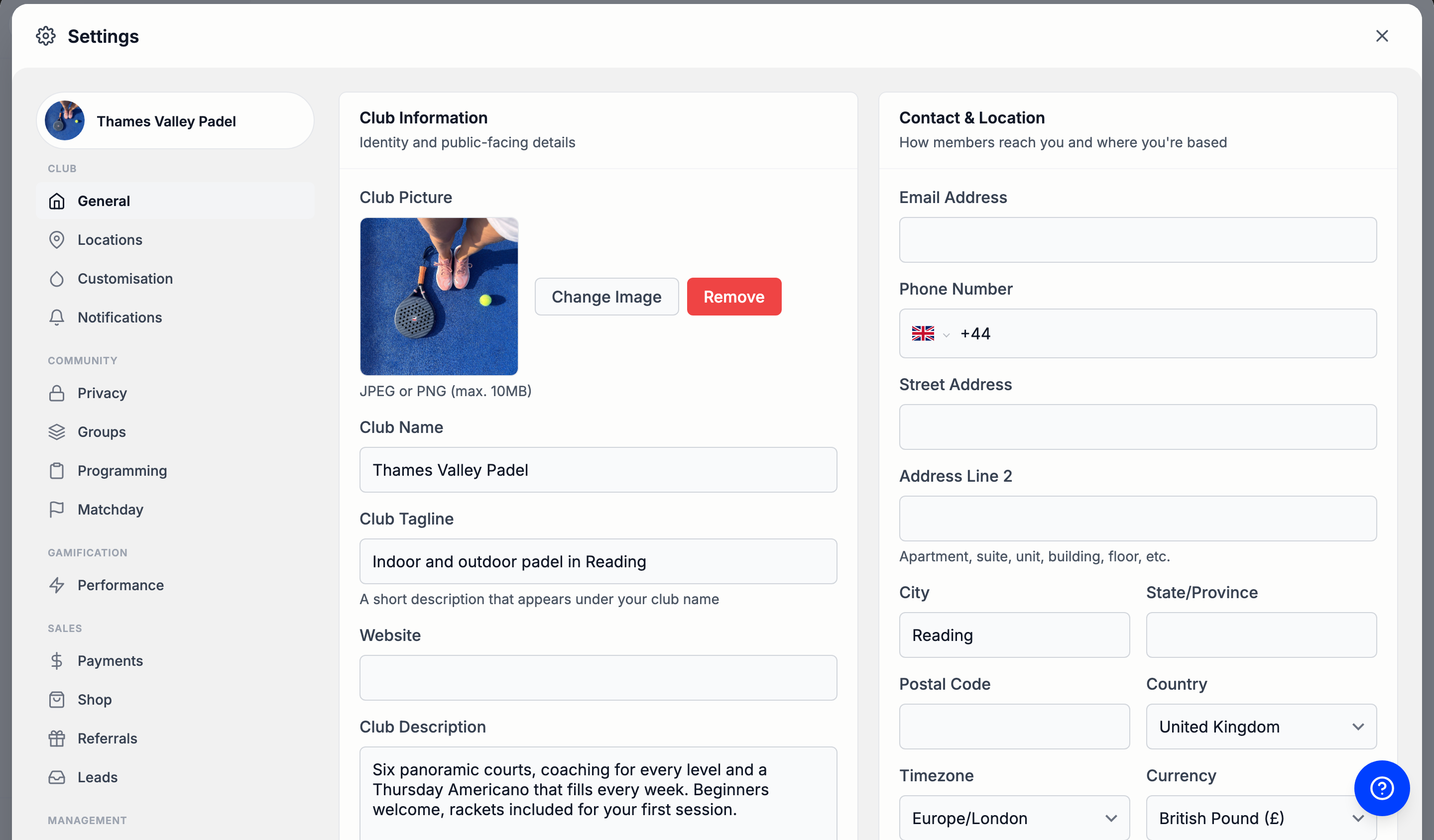
Open Settings and choose General.
- Club Information: Club Picture (JPEG or PNG, up to 10 MB), Club Name, Club Tagline, Website, Club Description and Club Categories.
- Contact & Location: email, phone, address, Country, Timezone and Currency.